



Tips & Tricks:
The quick check for your document templates
Did you know?
You can test templates directly from within SmartEditor 4.
You have created a document template, added a question or adjusted a setting. But how can you check whether the inputs appear as intended in SmartWizard and the document is built correctly?
In SmartEditor 4, you can launch the “Test Wizard” directly from the template you are editing in Microsoft Word. This lets you try out the current template, enter different answers and check the results – without having to find the template separately in SmartWizard.
The test view displays the questions on the left and the corresponding document preview on the right. This makes it immediately clear how the template appears to users and what the resulting document looks like.
Your benefits at a glance
- Test templates directly while editing them.
- Check questions and input steps from the user’s perspective.
- Review the document preview alongside SmartWizard.
- Identify adjustments early, before the template is used.
How it works
-
Open Test Wizard
- Open the template in SmartEditor 4.
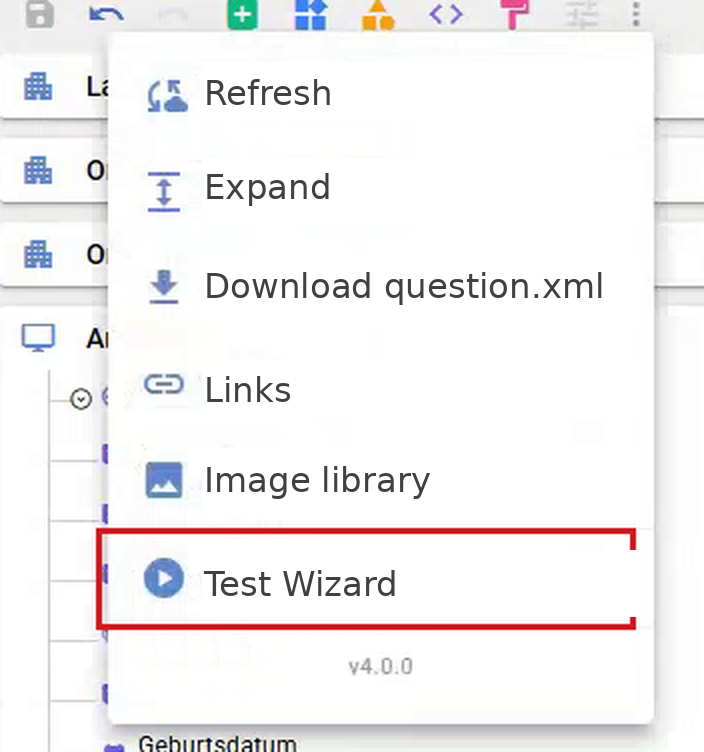
- In the SmartEditor menu, click “More” (three dots) and select “Test Wizard”.
- The template opens in a test view.
-
Walk through the questions:
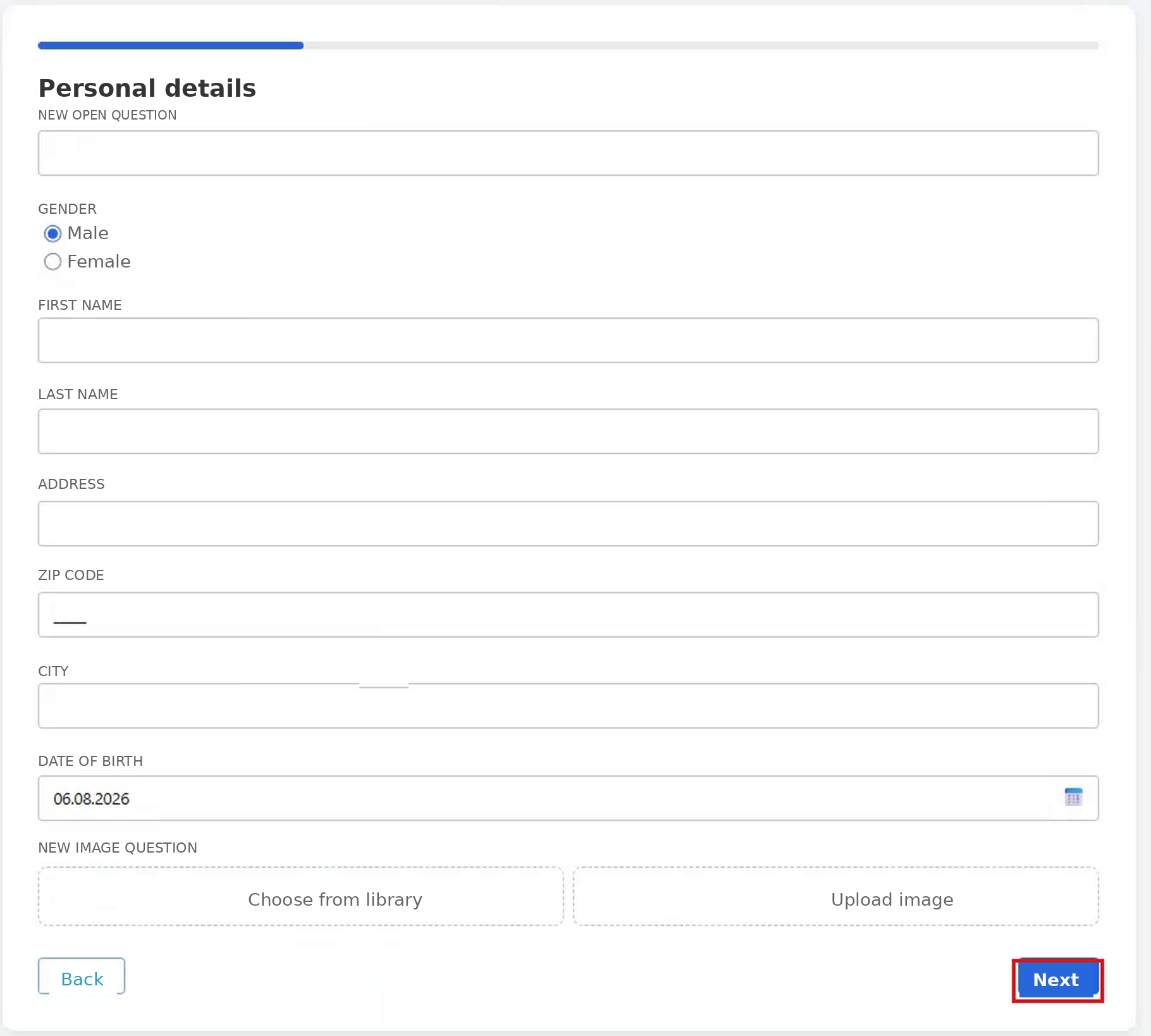
- Answer the questions in the test view as a user would.
- Click “Next” to move to the next question view and check the process step by step.
-
Check the document preview:
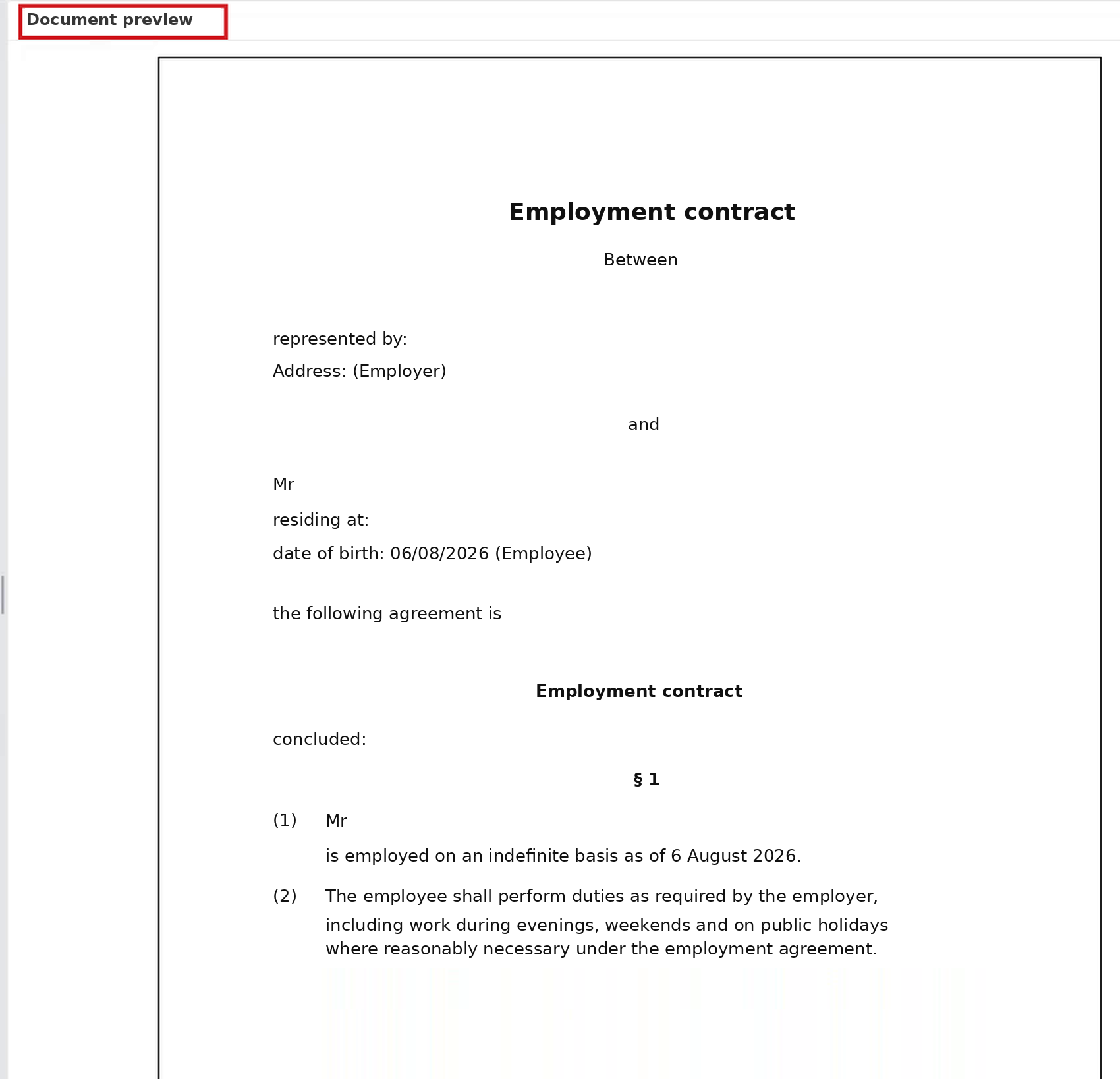
- The document preview appears to the right of the input form.
- Check that the content, wording and document structure are displayed as expected.
- If necessary, return to SmartEditor and make adjustments.
Tip: Try a template with different inputs, especially if questions or document content depend on earlier answers. This allows you to check different scenarios before the template is used.