


Comparing apples and oranges? Spotting the differences has never been easier.
Did you know? In the SmartCenter, you can directly compare different template versions with each other.

Templates evolve over time:
Content is added, wording is adjusted, or entire sections are revised. Especially for frequently used templates, it can therefore be important to track changes between two editing states quickly and reliably.
SmartDocuments FOUR makes this much easier. In SmartCenter, a direct version comparison is available for saved template versions. Instead of opening older versions separately and searching for differences manually, you can compare two versions side by side and review the changes in a targeted way. This is particularly helpful when real content changes need to be understood clearly – for example in an employment contract with adjusted working hours, updated compensation, or a newly added company car clause. At a glance, you can see which content was added, changed, or removed.
Two different views are available for this purpose:
1. Side by side:
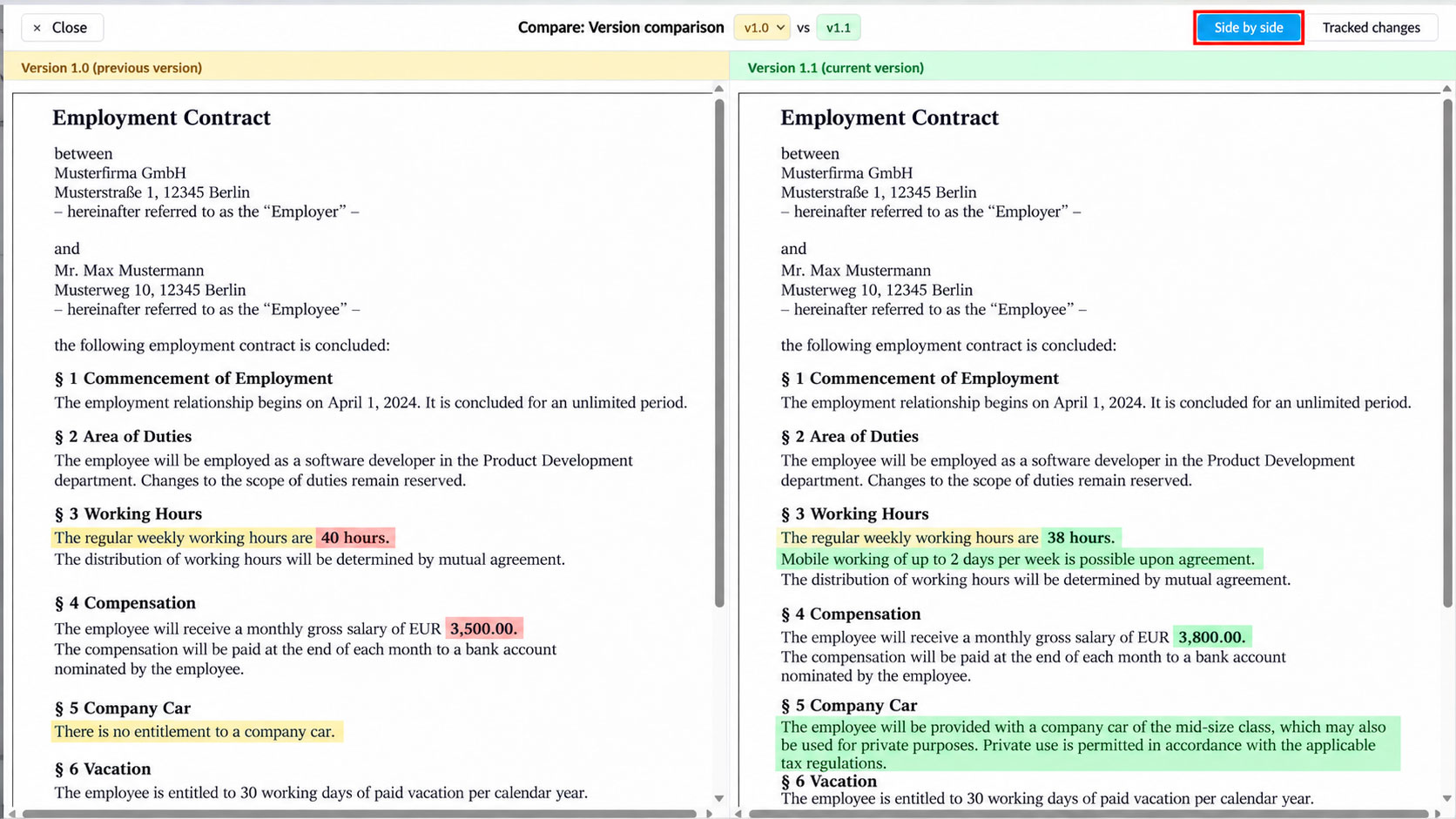
In “Side by side”, both versions are displayed directly next to each other.
2. Tracked changes:
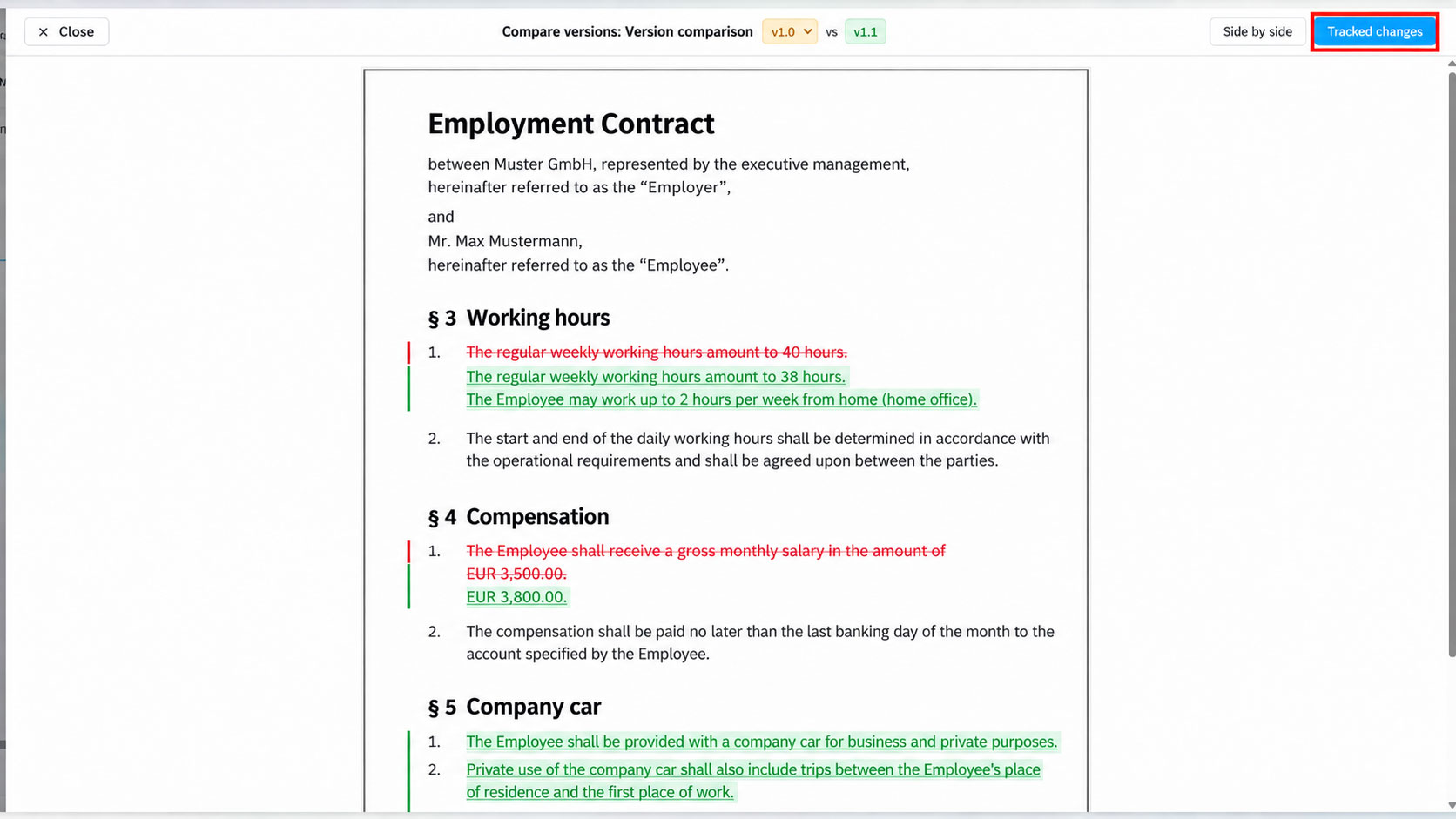
Alternatively, “Tracked changes” highlights the specific adjustments within the document itself.
This allows you to choose the view that best fits your review task.
Your benefits at a glance
- Identify changes between different template versions more quickly.
- Compare two versions directly side by side.
- Trace specific modifications using the “Tracked changes” view.
- More transparency and confidence when maintaining and developing templates.
How it works
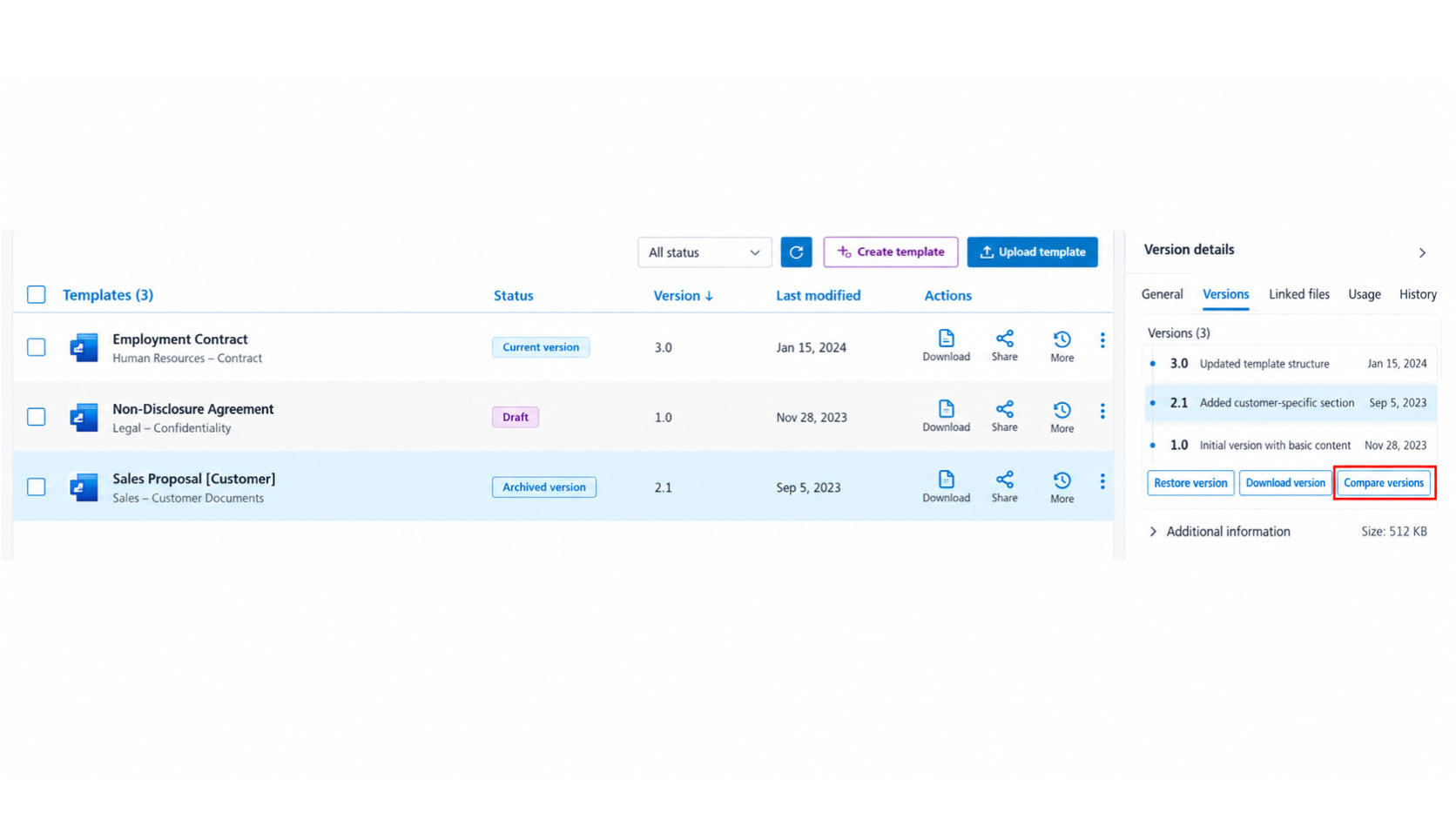
- Select the required version: In SmartCenter, choose the relevant template and open the “Versions” tab in the properties panel. There you can see the available version history. Use the “Compare versions” function to start the direct comparison.
- Compare versions side by side: In the comparison view, you can display an older and a current version next to each other. Differences in structure and content become visible immediately – for example changed working hours, updated compensation, or newly added contractual clauses.
- Track changes in detail: If you want to see the exact modifications directly in the document, switch to the “Tracked changes” view. New content, replaced passages, and removed wording are highlighted clearly and can be reviewed very efficiently.
Tip: Use version comments consistently whenever possible. This helps you understand not only that a template changed, but also why a new version was created.
Any questions?
We’re here to support you every step of the way.