



Pause the document. Grab a coffee.
Pick up where you left off later.

Did you know?
You can now save documents in progress as drafts in the new SmartWizard 4
Not every document is created in a single session.
Especially when dealing with more complex processes, there may still be information missing, questions that need clarification, or tasks that simply need to be completed at a later time.
That is exactly where the new draft functionality in SmartWizard 4 comes in handy. Instead of starting over, you can now save partially completed documents as drafts and resume working on them whenever you're ready. Your current progress is preserved, allowing you to continue exactly where you left off. All saved drafts are centrally available in SmartSpace, making it easy to keep track of multiple document processes at the same time.
A small feature with significant practical benefits: interruptions become easier to manage, previously entered information does not have to be entered again, and document creation can be integrated much more flexibly into everyday work.
Your benefits at a glance
- Flexibly pause your work and continue later
- No need to re-enter information that has already been provided
- Even more complex document creation processes can be integrated more easily into everyday work
- aved drafts are centrally accessible in SmartSpace
How it works
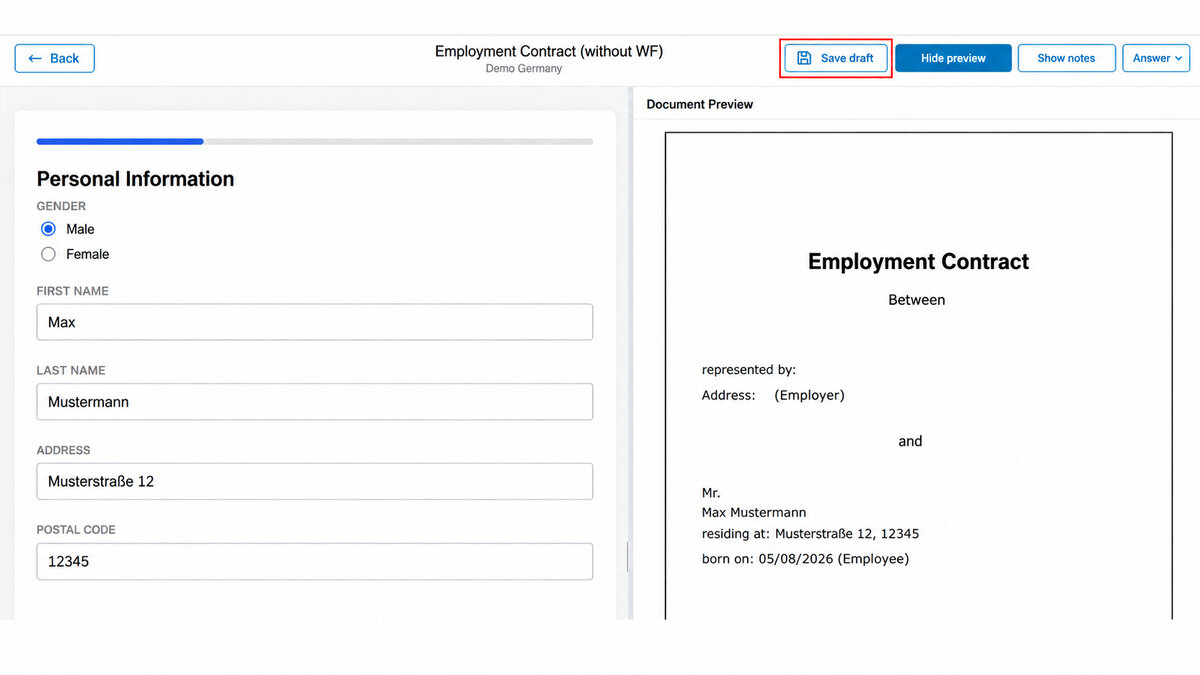
- Save a draft: While working on a document in SmartWizard 4, you can save your current progress using the “Save Draft” function. The process is not completed at this stage but stored for later editing.
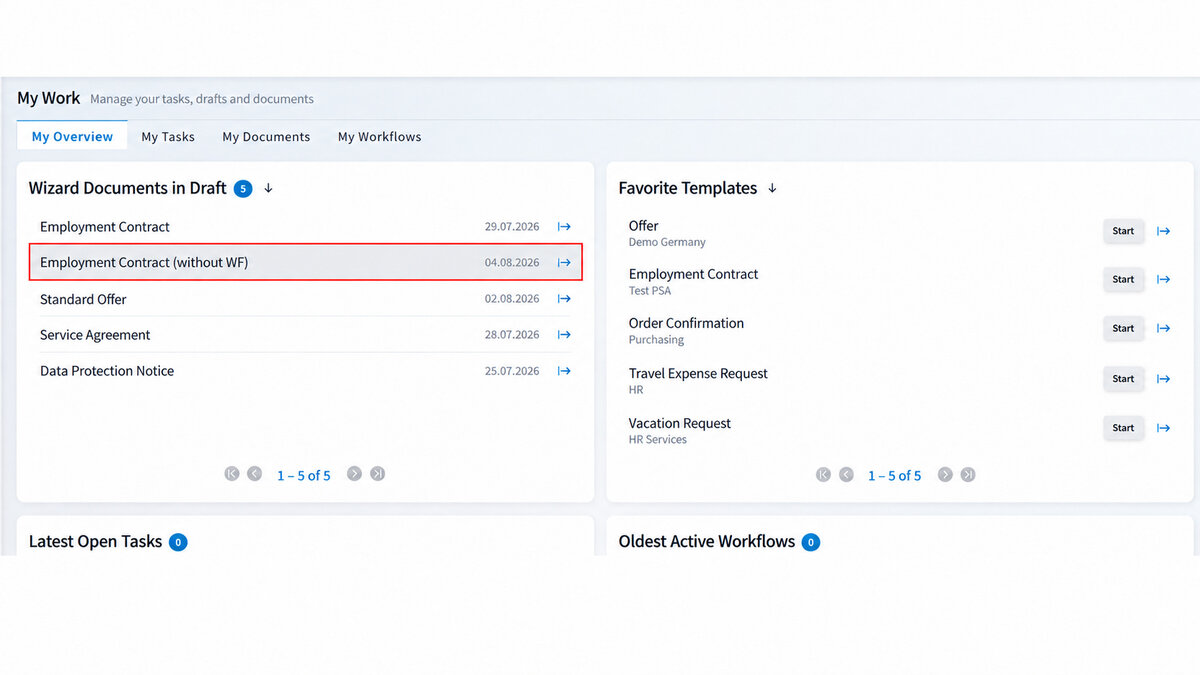
- Resume a draft: Your saved drafts can be found in SmartSpace under “My Work > My Overview.” In the “Wizard Documents in Draft” section, simply select the desired draft and continue working on it right where you left off.
Tip: The draft feature is especially useful for larger templates or processes where information needs to be gathered gradually. This allows you to save your progress and continue your work easily at a later time.
Any questions?
We're here to help and would be happy to assist you.