



Your wizard. Your design. Your rules.
Did you know?
In SmartWizard 4, you can customize not only the design, but also the way your questions are displayed.
A modern wizard should not only be functional; it should also fit visually into your application environment. SmartDocuments FOUR gives you significantly more options for this: In SmartWizard 4, both the appearance and the user experience can be tailored specifically to your requirements.
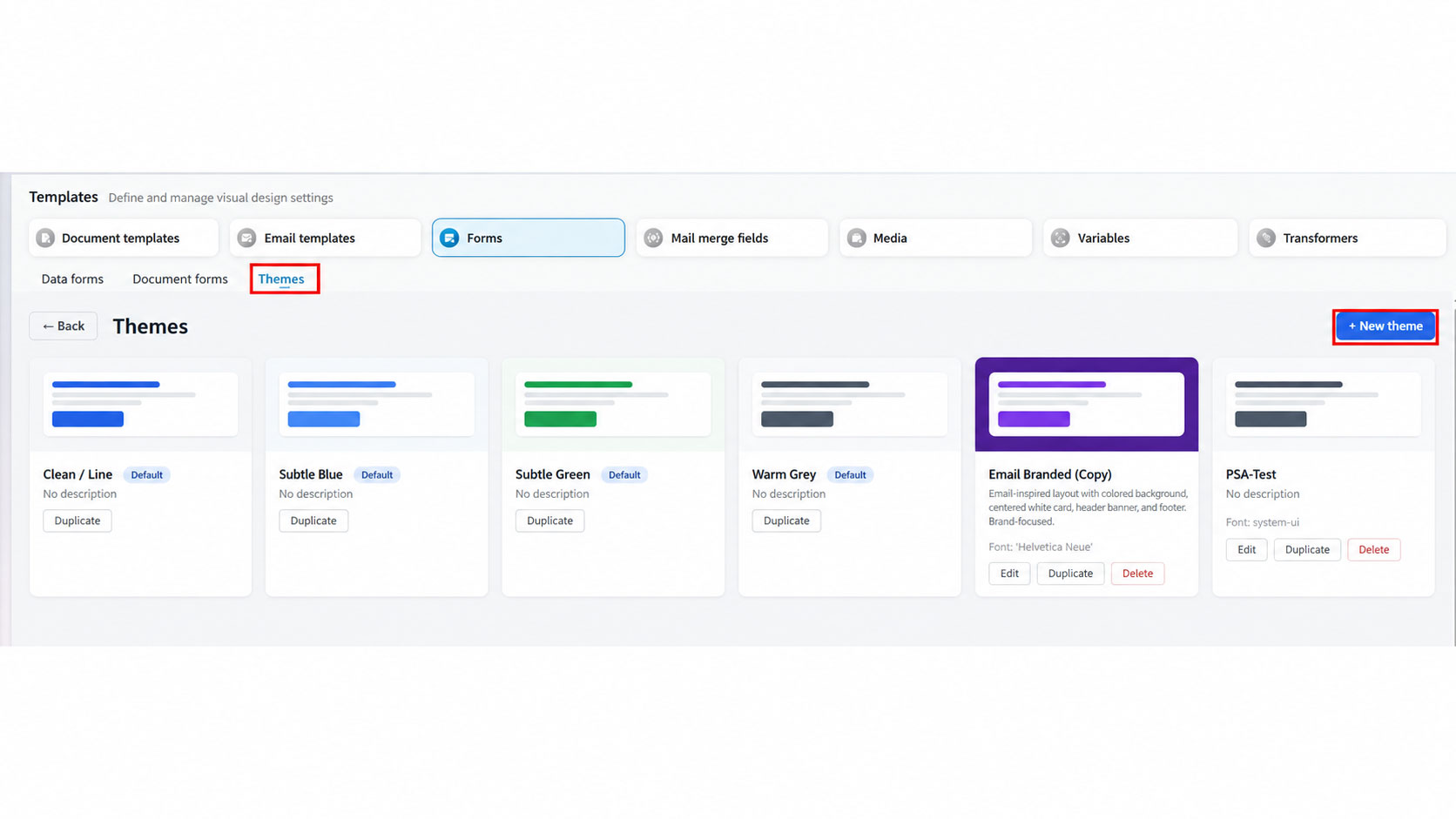
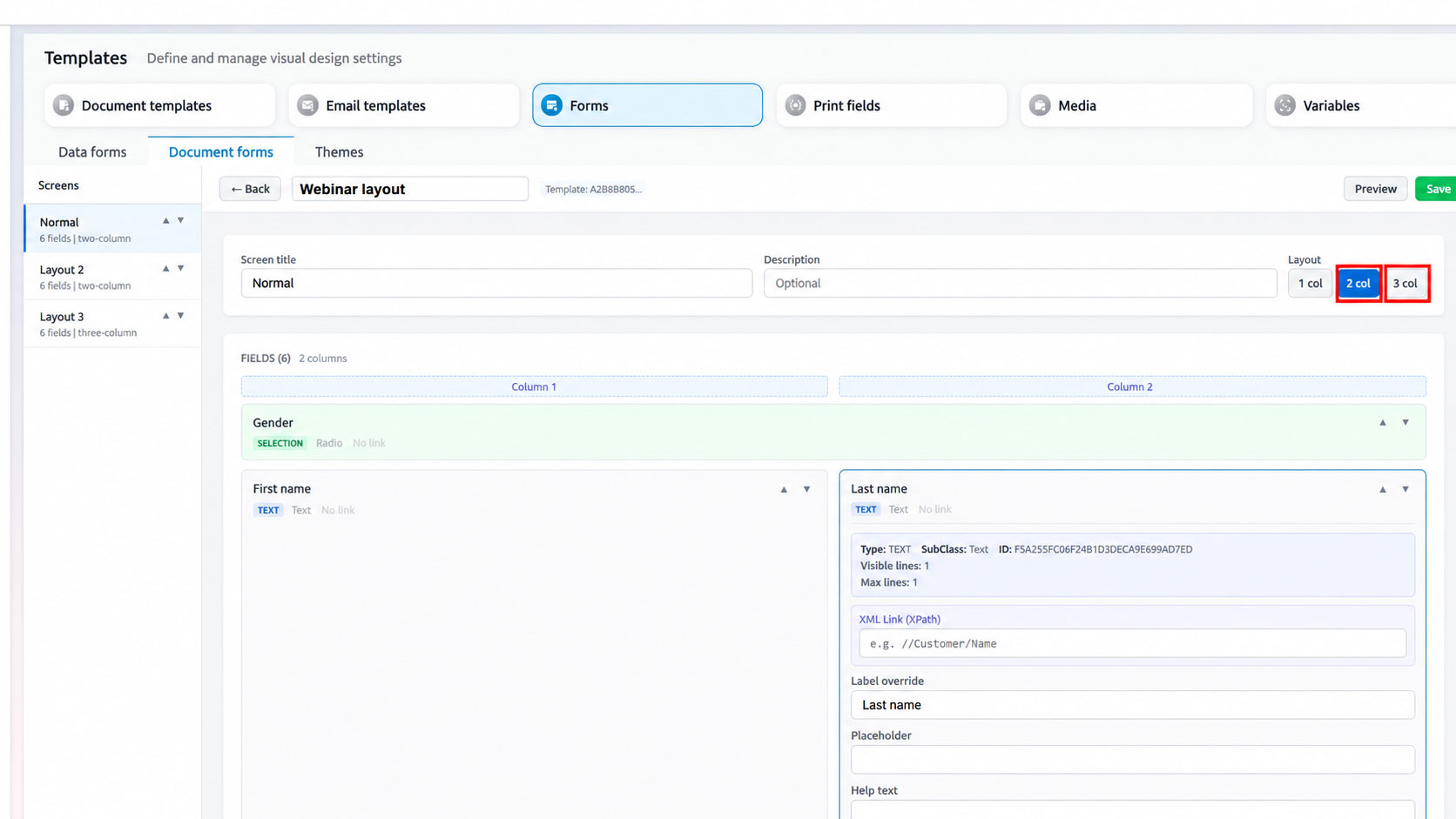
Themes allow colors, fonts, and visual styles to be managed centrally. This creates a consistent look and feel that can be aligned more closely with your corporate design or the intended use case. Existing themes can be used, duplicated, and developed further as needed. Customization is not limited to visual design. The layout of individual wizard pages can also be configured more flexibly. Depending on the content and the desired level of clarity, questions can be displayed in one, two, or three columns. This creates more structure and helps make forms more compact and user-friendly.
Especially in more extensive assistants, this combination of visual customization and flexible field layout is a major benefit. SmartWizard 4 therefore becomes not only more individual in appearance, but also more efficient to use.
Your benefits at a glance
- Manage themes centrally and use them for different scenarios
- Align the look and feel with your corporate design
- Duplicate existing themes as a starting point and develop them further
- Arrange wizard questions in one, two, or three columns as required
- More clarity and a more modern user experience in SmartWizard 4
How it works
- Manage and create themes: In the Forms area, the “Themes” tab lets you view existing themes, create new ones, or duplicate and edit existing variants. This provides a central foundation for the desired appearance of your wizard interfaces.
- Define the layout of questions flexibly: Within form design, you can specify how questions are arranged on a wizard page. Depending on the structure, content can be organized in one, two, or three columns. This makes it possible to design both simple input forms and more extensive dialog pages with many fields in a clear way.
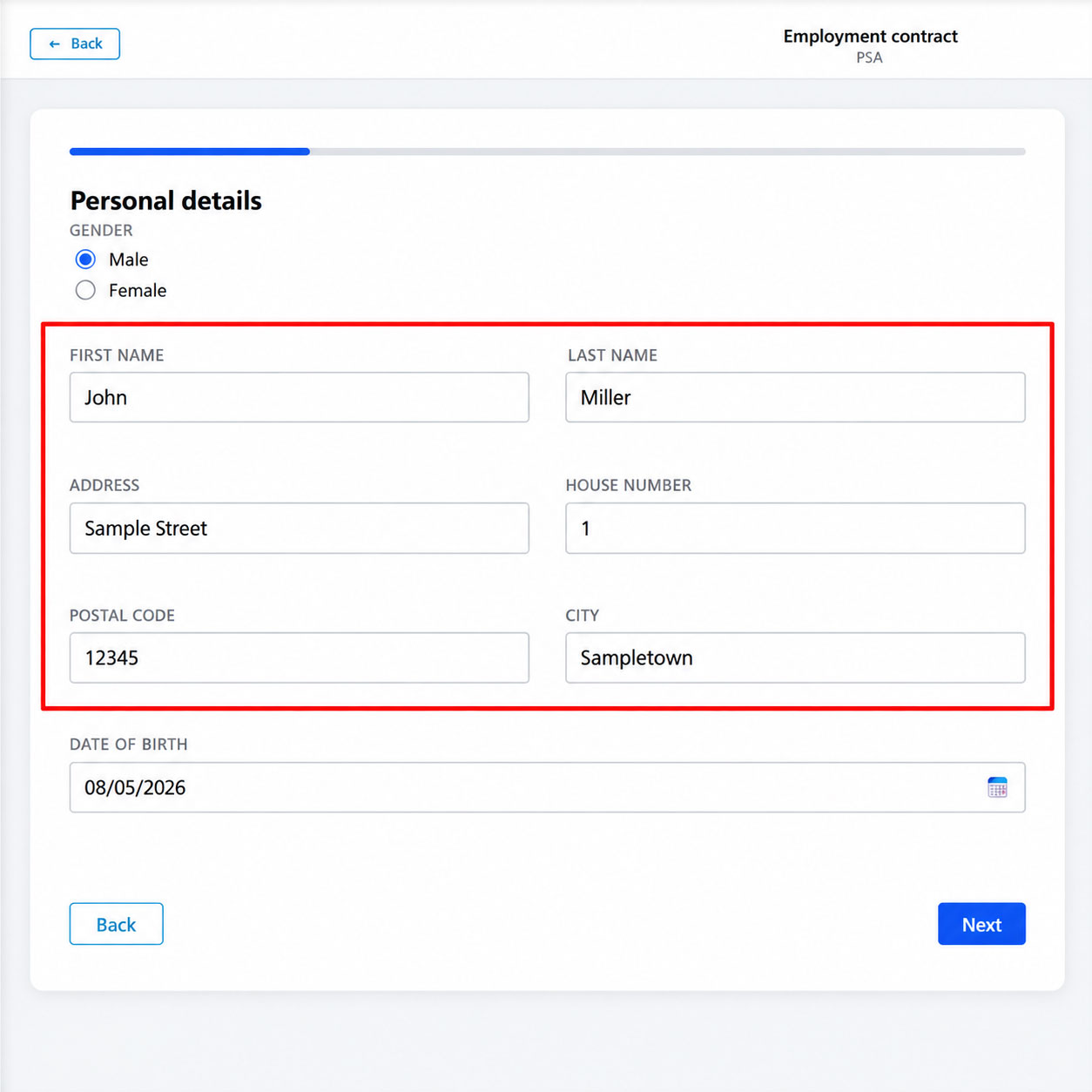
- Use the result directly in SmartWizard 4: The selected design and layout options are immediately visible in SmartWizard 4. This creates an interface that not only looks more modern, but is also better suited to your processes and users. The following example shows a two-column layout within the wizard.
Tip: Using an existing theme as a starting point makes it particularly quick to create new variants while maintaining a consistent appearance. Combined with a two- or three-column layout, this produces a wizard that is convincing both visually and functionally.